
Environment Setup
This guide walks you through setting up the core building blocks of Elacity: a prompt registry, an environment, and optionally a fleet and LLM provider. By the end you’ll have a working foundation for versioning and deploying prompts.
Set up a Prompt Registry
A registry is where your versioned prompt artifacts live — think of it as a package repository scoped to your organization.
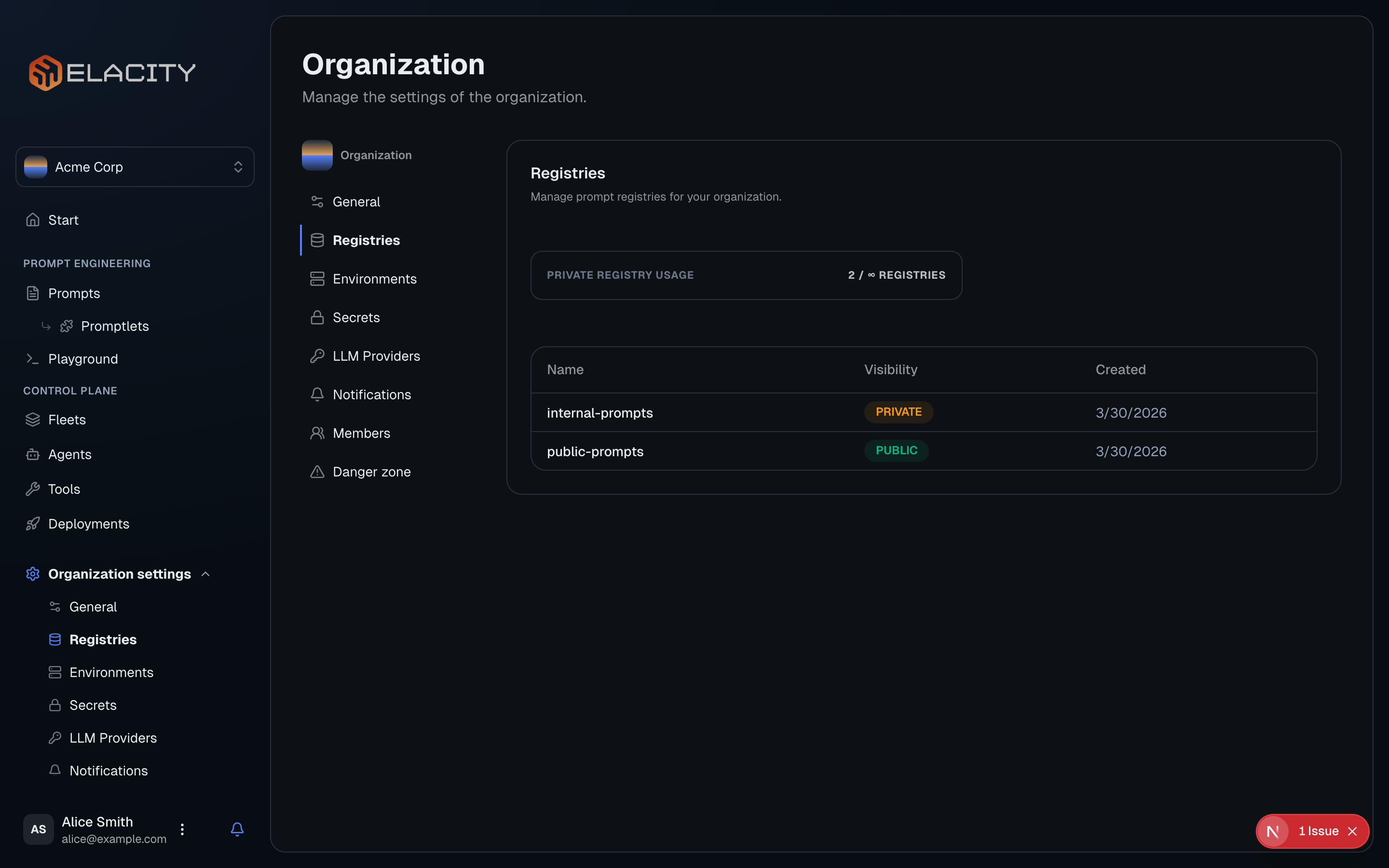
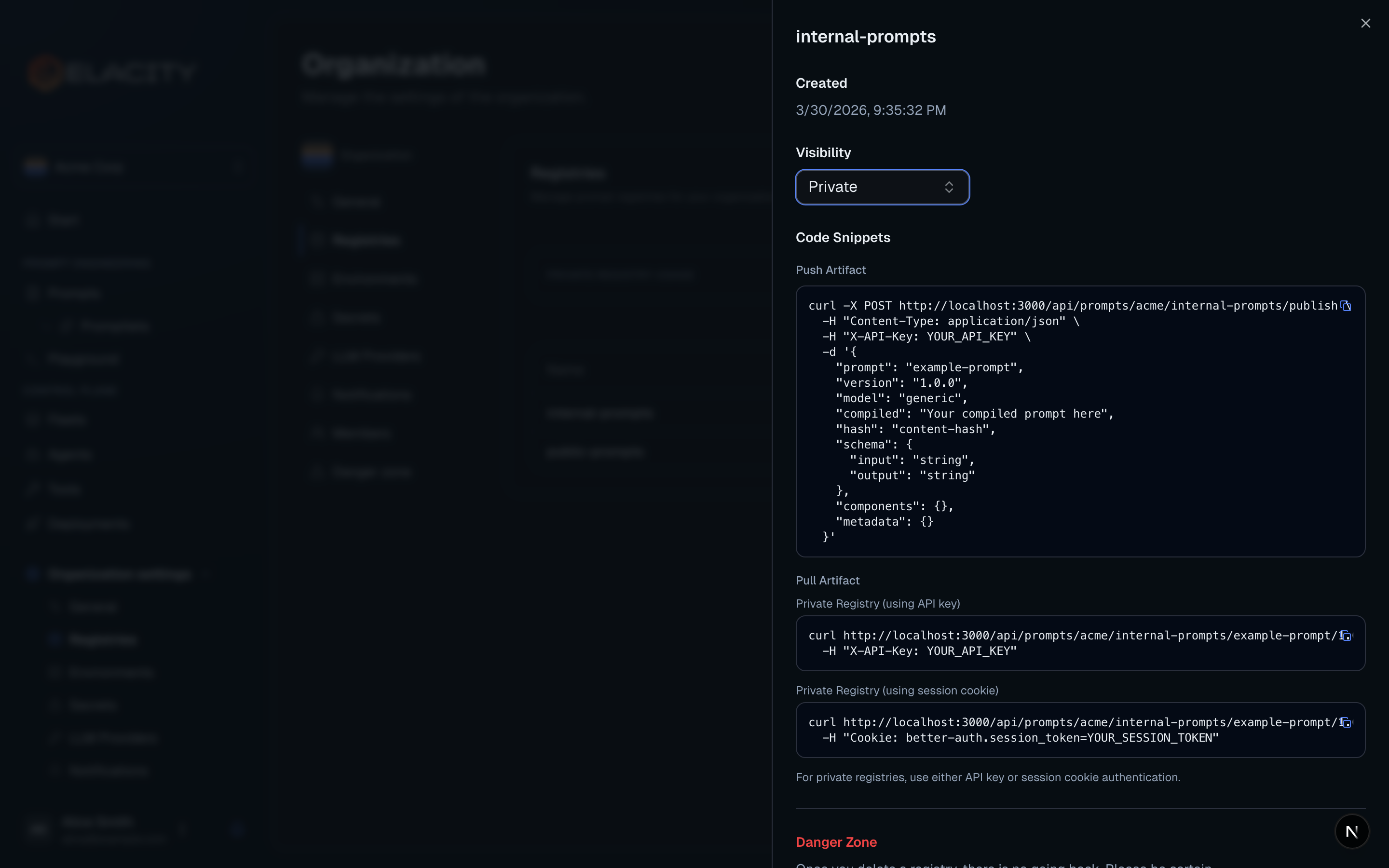
Public vs Private Registries
Accessing a public registry — no authentication needed:
Accessing a private registry — requires your API key (X-API-Key or Authorization: Bearer; if both are sent, X-API-Key wins):
Public registries are great for sharing prompt templates with the community or across teams. Use private registries for anything you don’t want exposed outside your organization.
Add an Environment
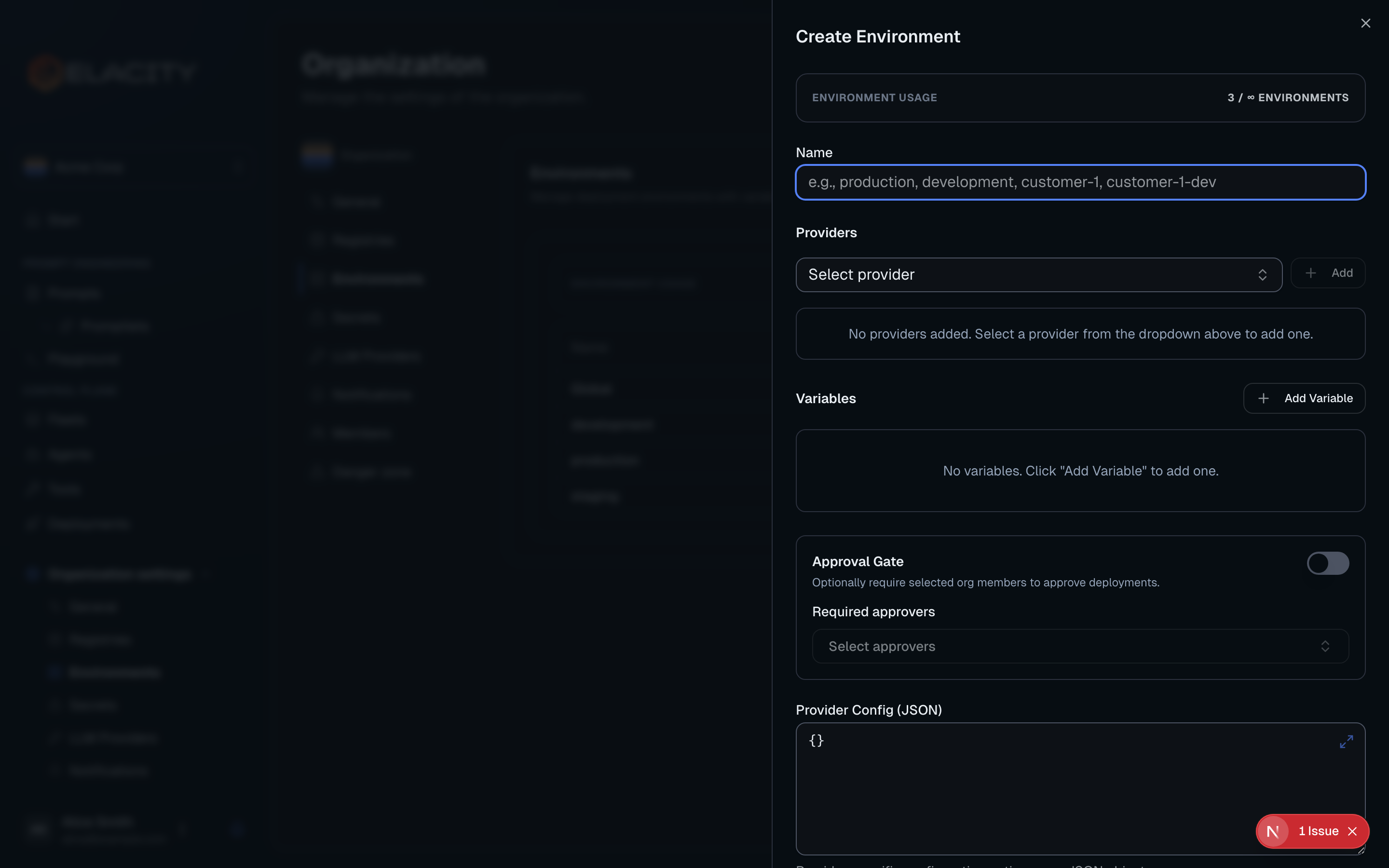
Environments let you isolate provider credentials, variables, and configuration per deployment stage. A typical setup includes dev, staging, and prod environments.
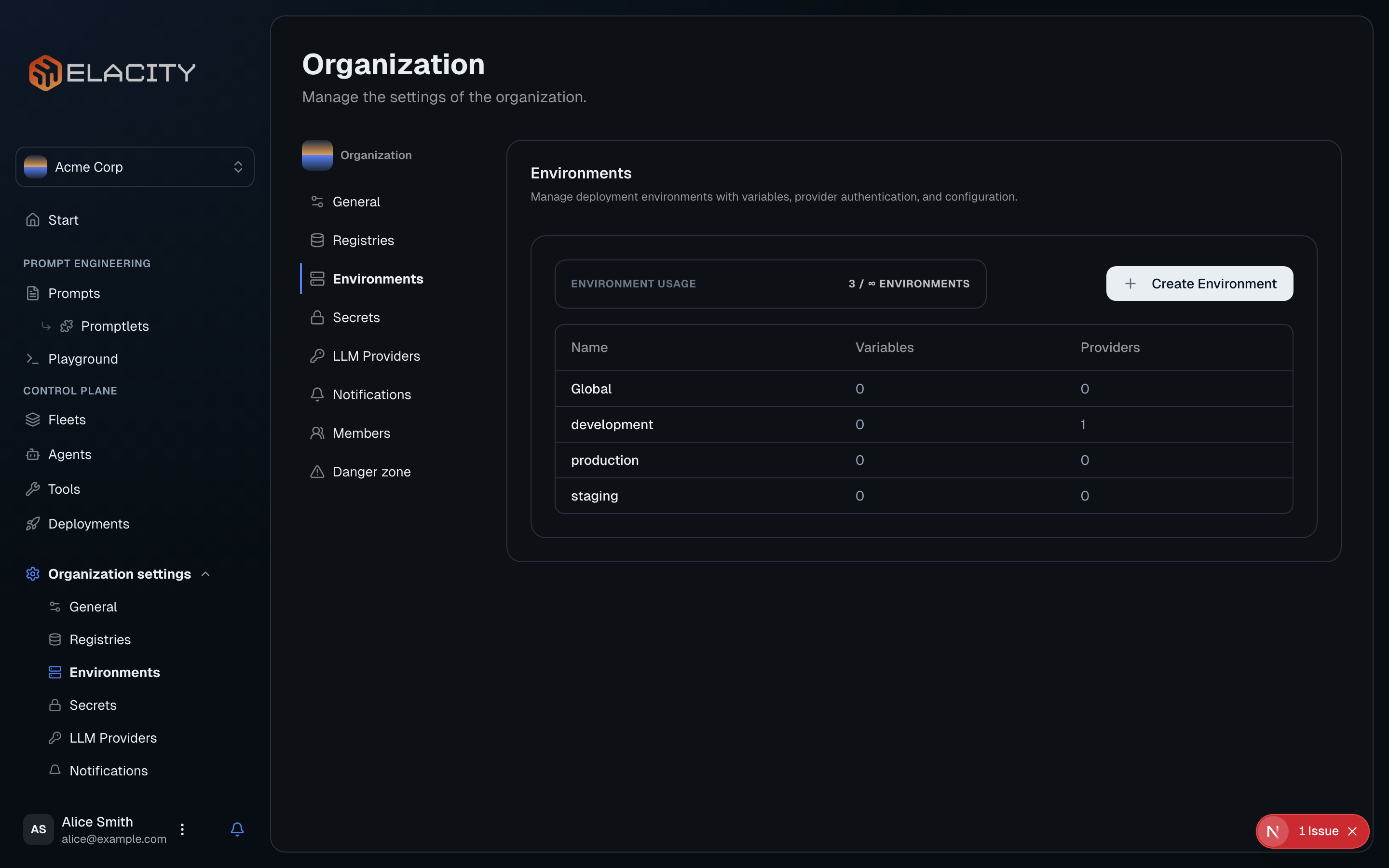
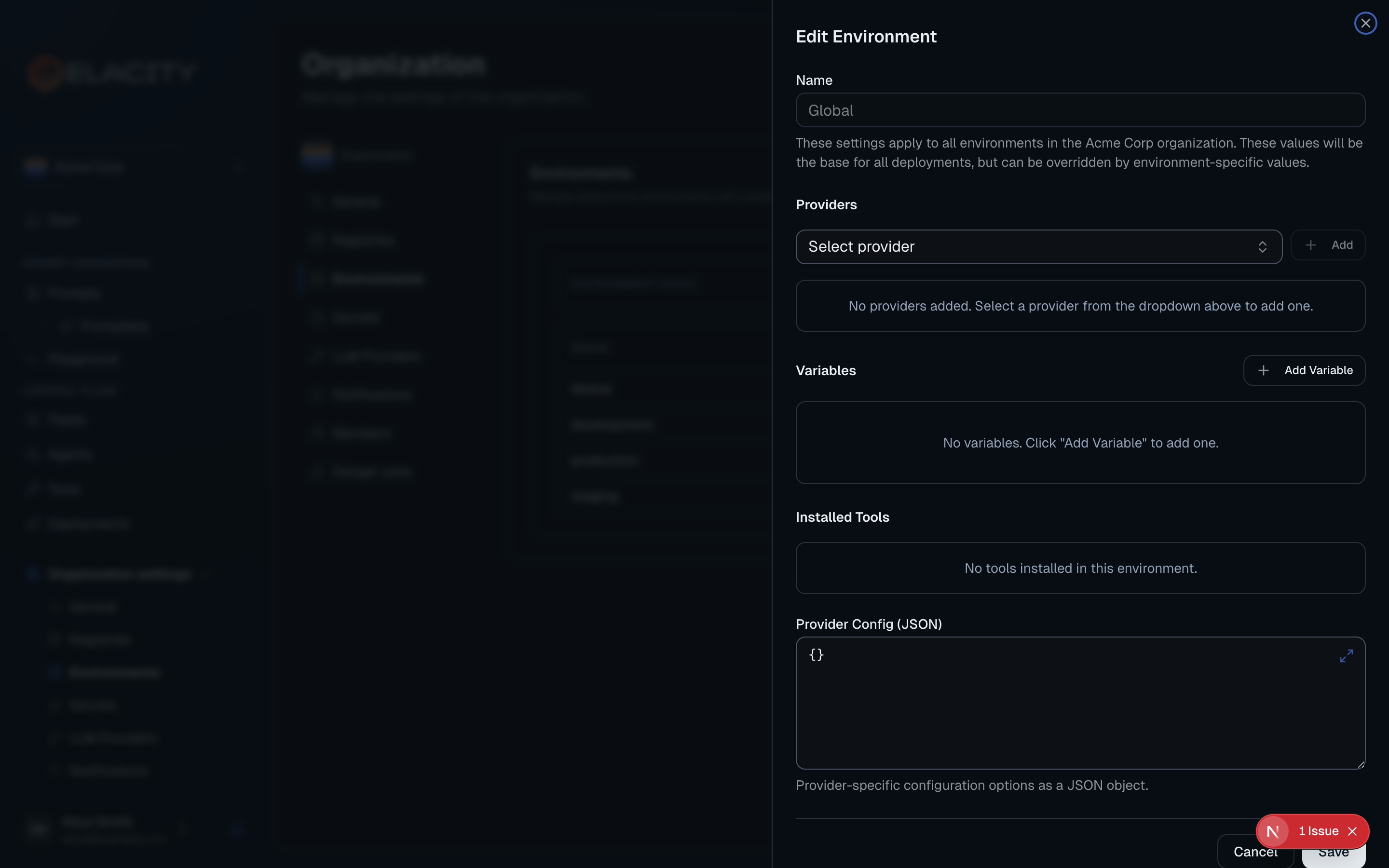
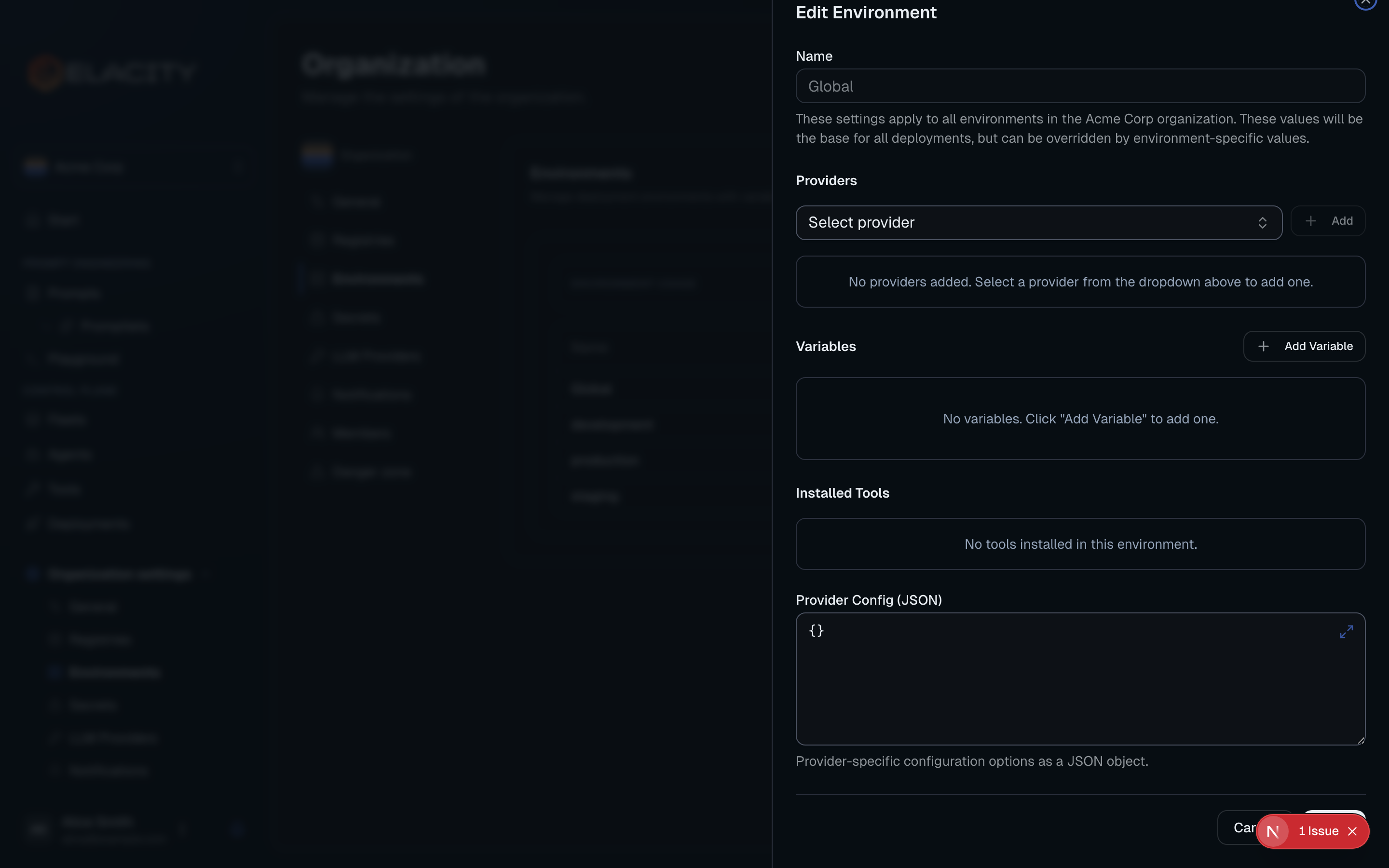
Why use environments?
- Safe testing — validate changes in
devbefore they reachprod - Separate credentials — each environment can use its own provider API keys
- Variable substitution — the same prompt template produces different output per environment (e.g. different support URLs, company names, or escalation contacts)
- Approval gates — optionally require team approval before deploying to sensitive environments
Create a Fleet (Optional)
Fleets are logical groupings of agents that share default configuration. If you only have a few agents, you can skip this step and come back later.
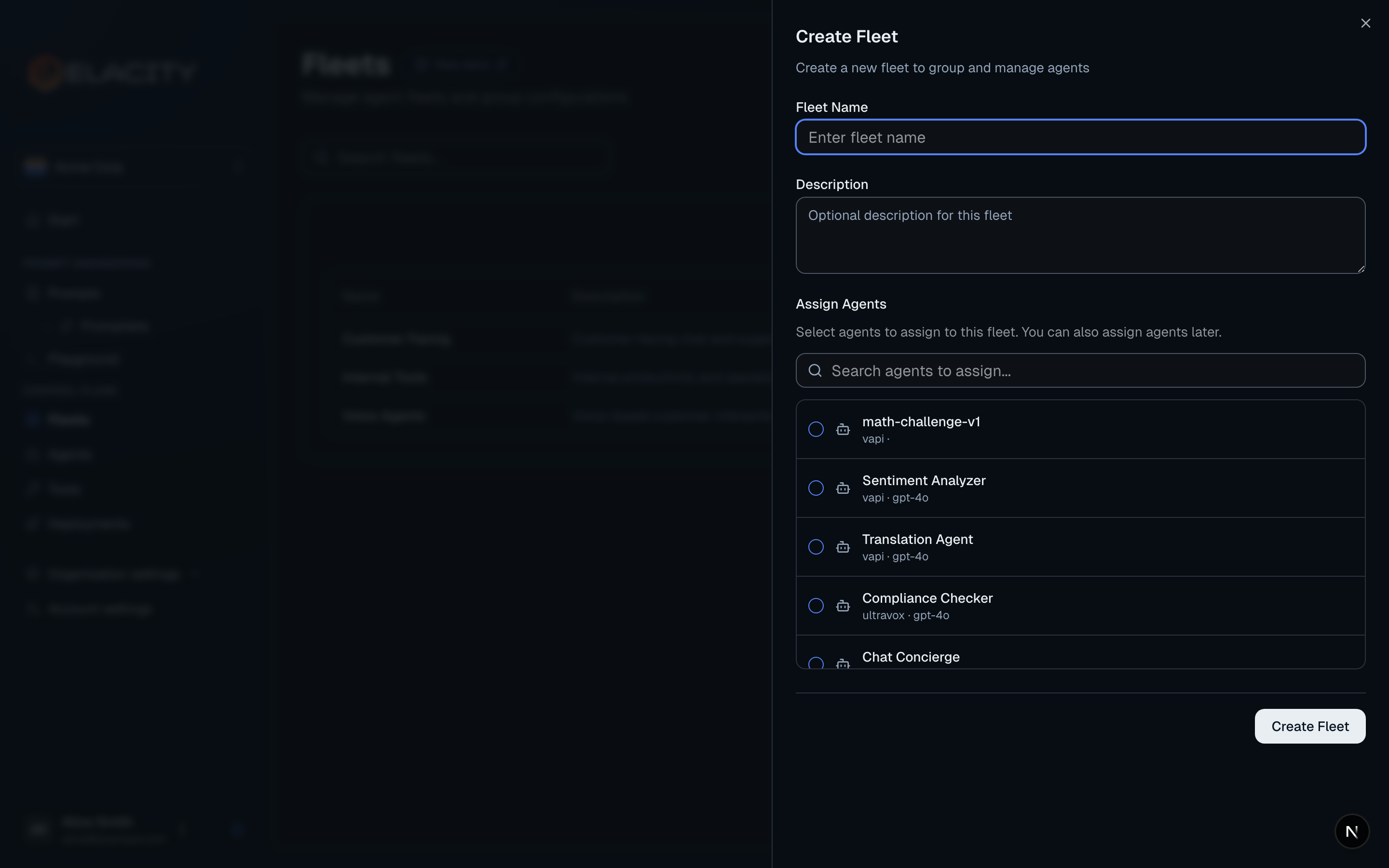
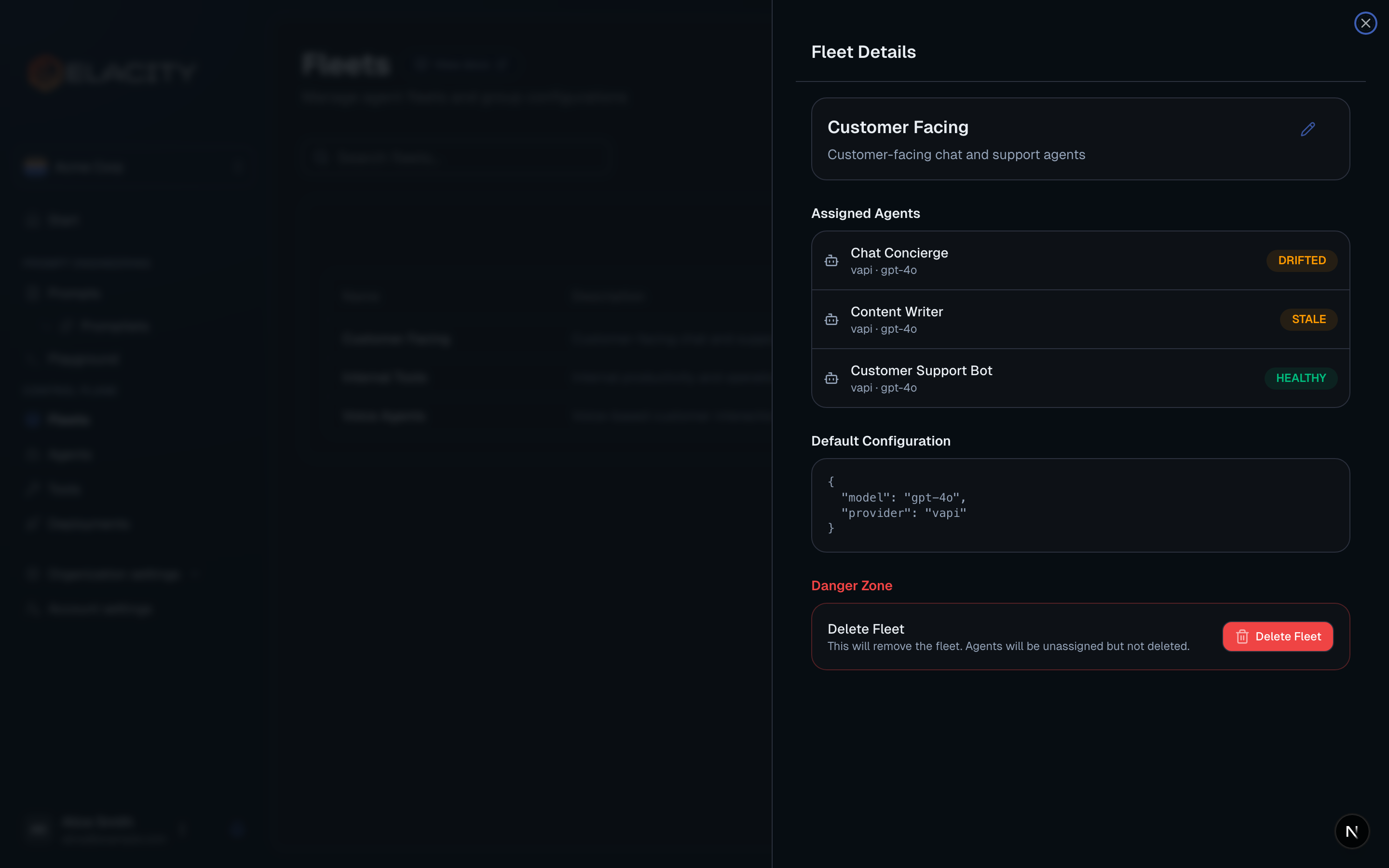
Why use fleets?
- Inherited defaults — set a default model and provider once; every agent in the fleet picks it up
- Bulk operations — deploy or update all agents in a fleet at once
- Organization — group agents by function (e.g. “Customer Support”, “Sales Outbound”, “Internal Tools”)
Set up an LLM Provider (Optional)
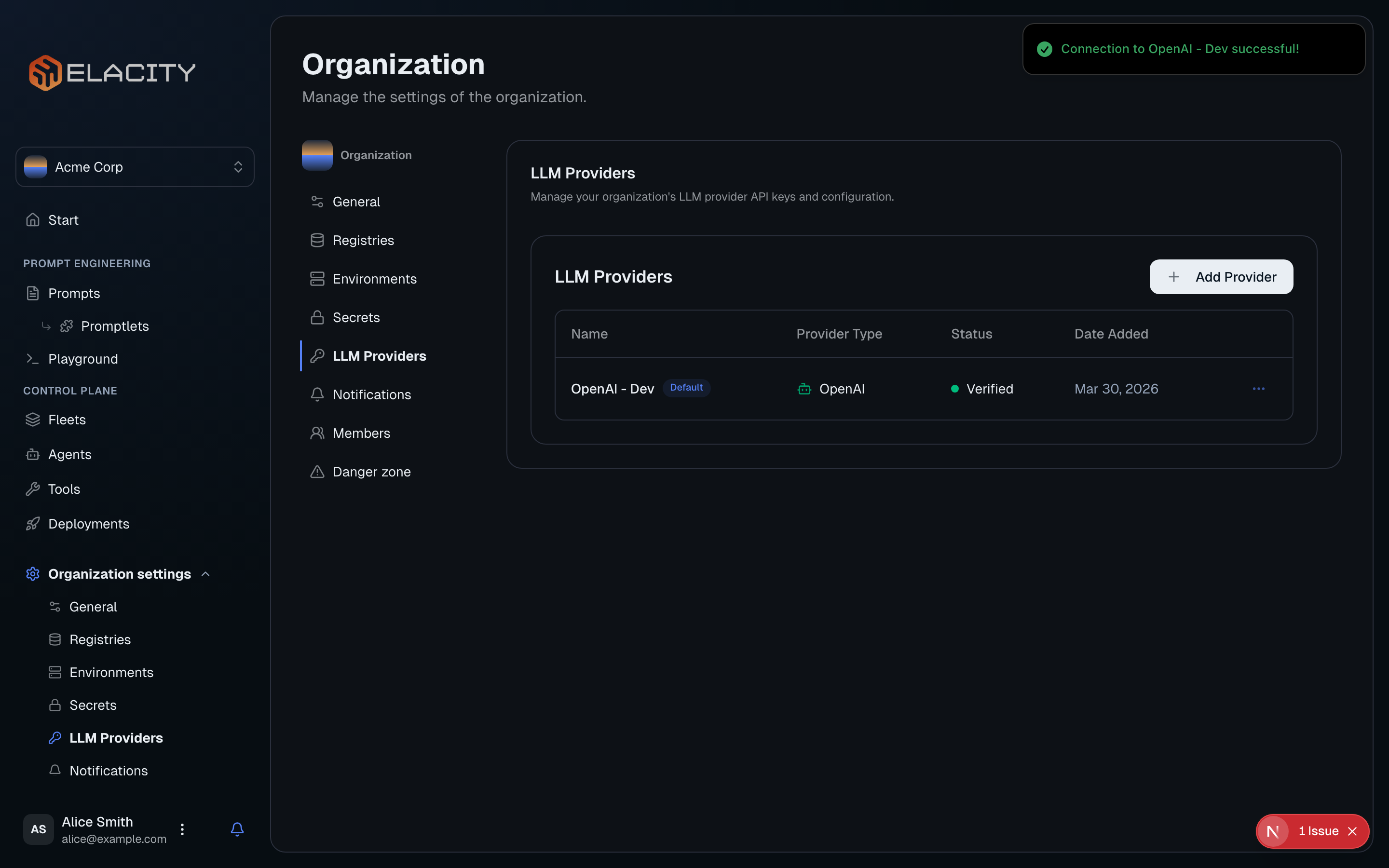
LLM providers give Elacity access to language models for the playground and prompt compilation previews. This is separate from the deployment provider credentials you set in an environment.
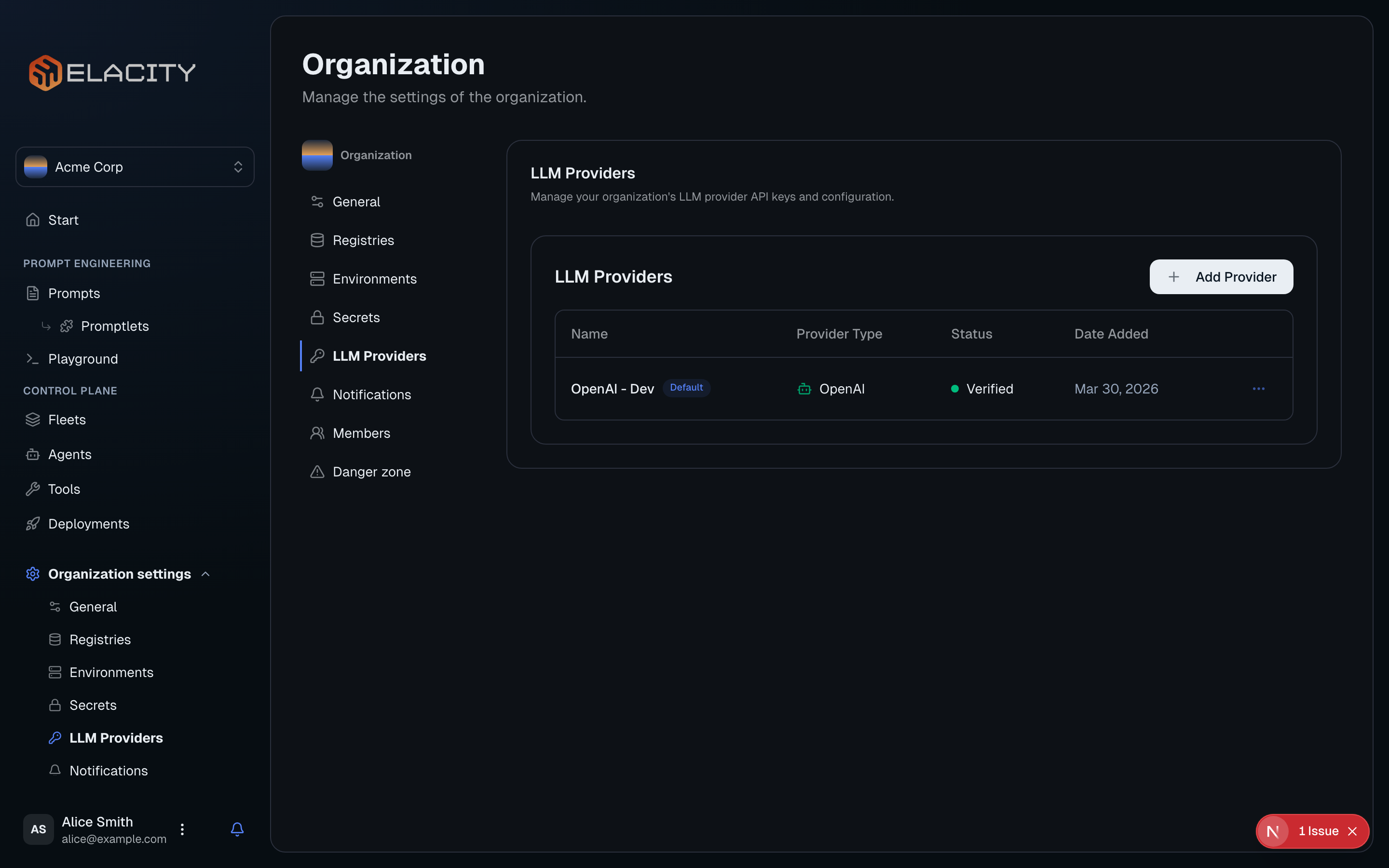
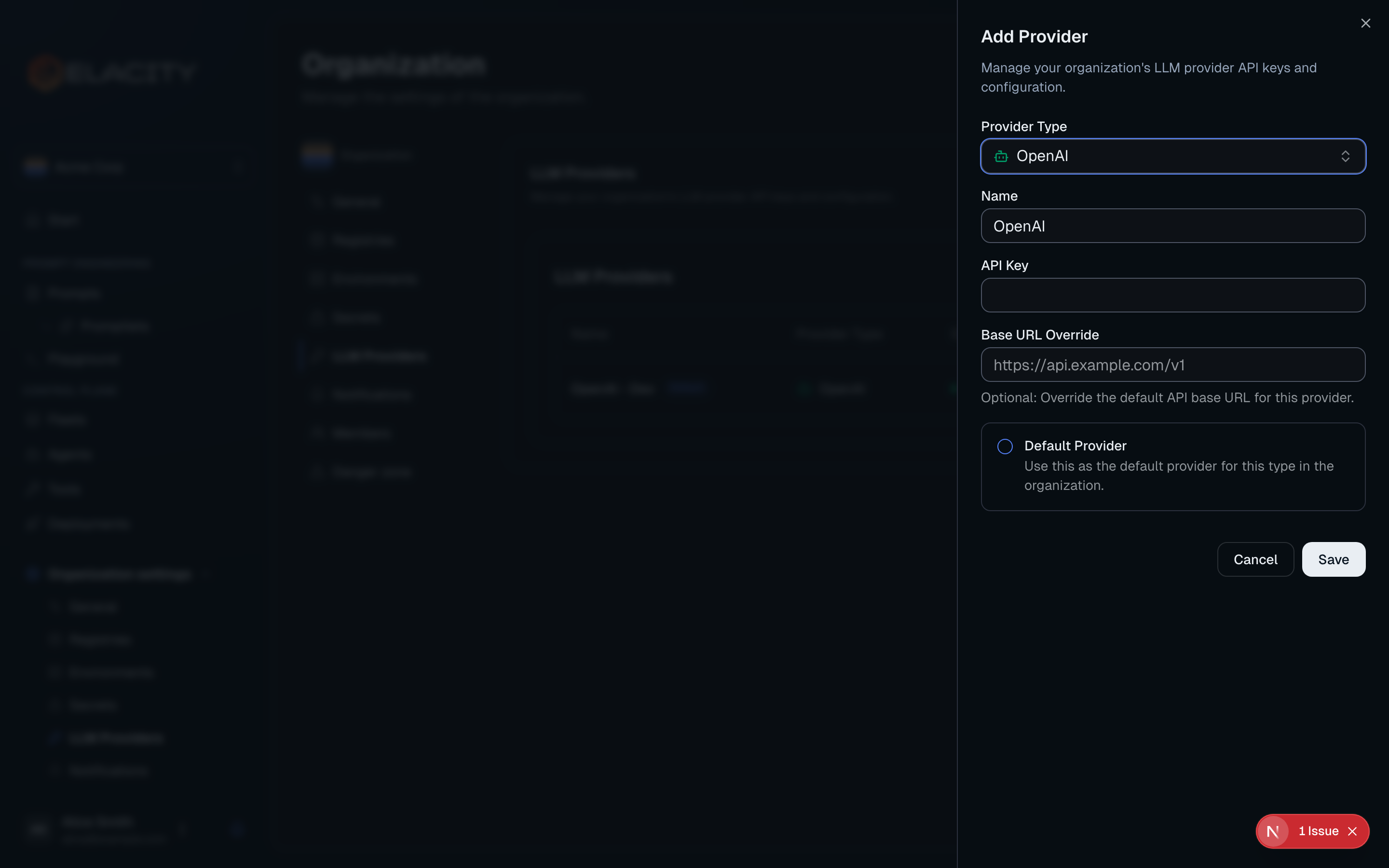
Why set up an LLM provider?
- Playground — test prompts interactively against real models before deploying
- Model discovery — browse available models from each provider
- Encrypted storage — API keys are encrypted at rest, not stored in plaintext
- Shared access — team members can use the playground without needing their own API keys